

Get started with Flipdish MCP
Connect your AI assistant to Flipdish to access your account using natural language.
The Flipdish MCP server lets compatible AI assistants use Flipdish tools on your behalf. Your existing Flipdish account permissions control which data and actions are available.
Before you start
You’ll need:
- A Flipdish Portal or App account.
- Claude on desktop or web, with access to custom connectors.
Connect to Claude
1. Open connector settings
Open Claude and go to Settings → Connectors.
On the web, open your profile menu first, then select Settings → Connectors.
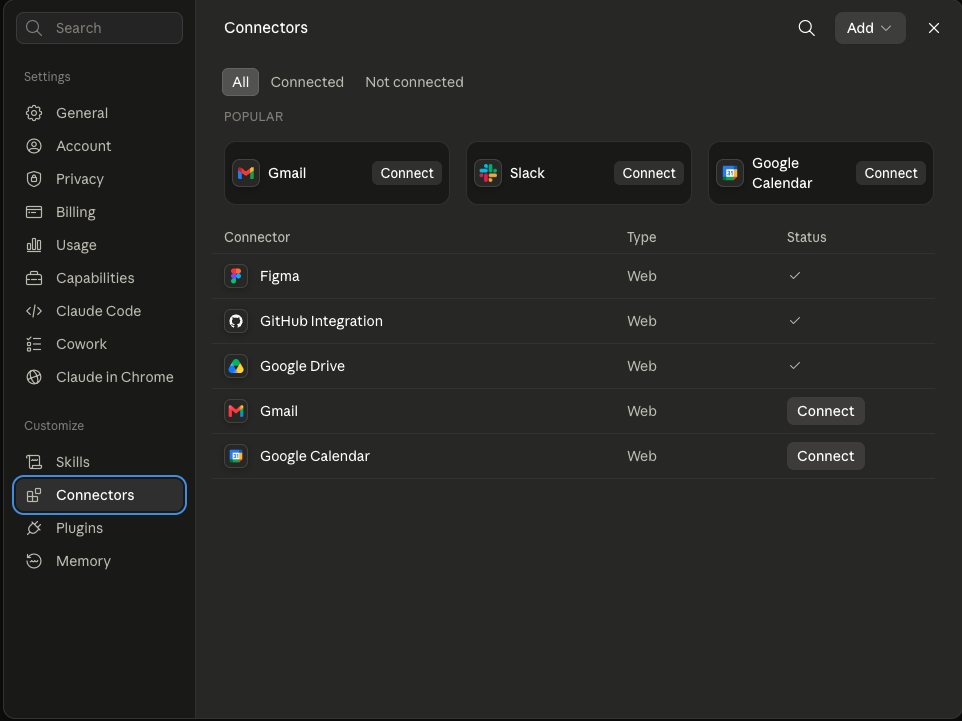
2. Add a custom connector
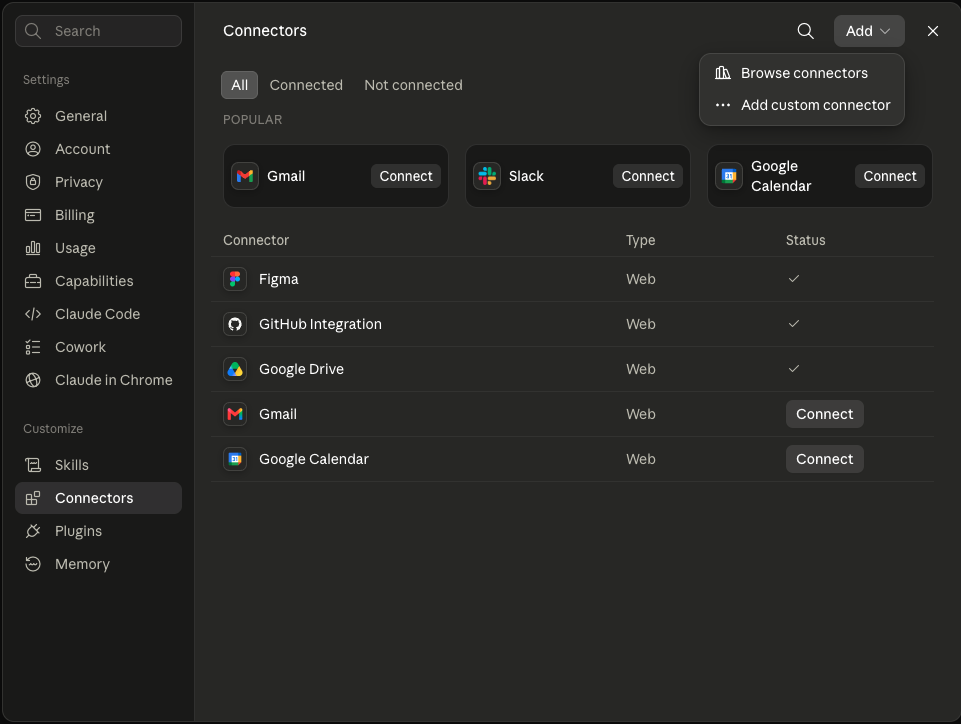
Click Add, then choose Add custom connector.
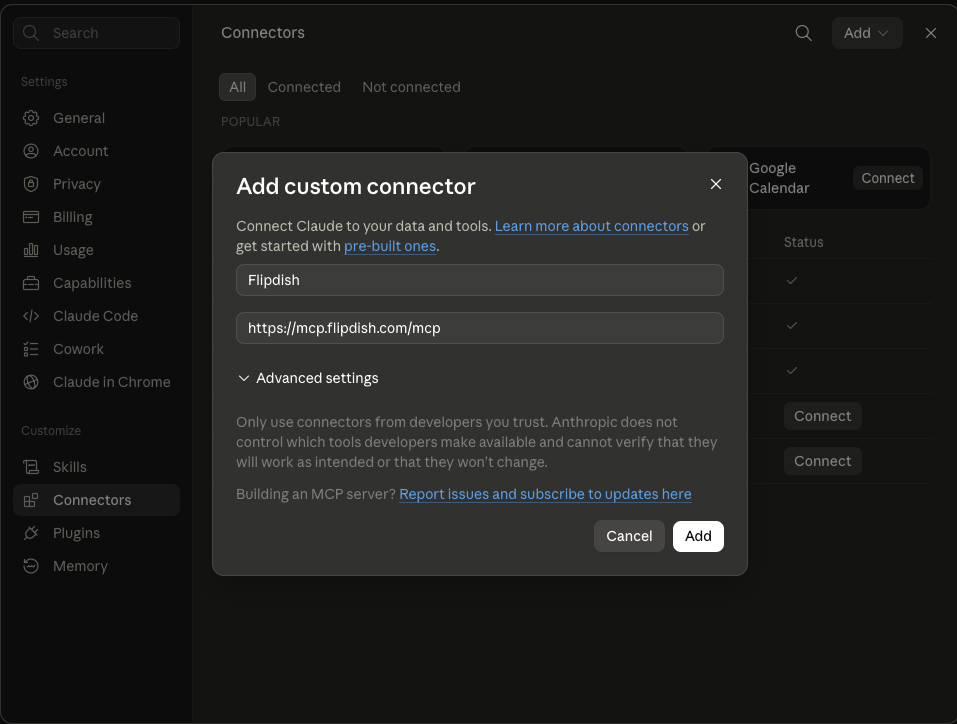
Enter these details:
| Field | Value |
|---|---|
| Name | Flipdish |
| URL | https://mcp.flipdish.com/mcp |
Click Add to create the connector.
3. Connect your Flipdish account
Open the Flipdish connector and click Connect.
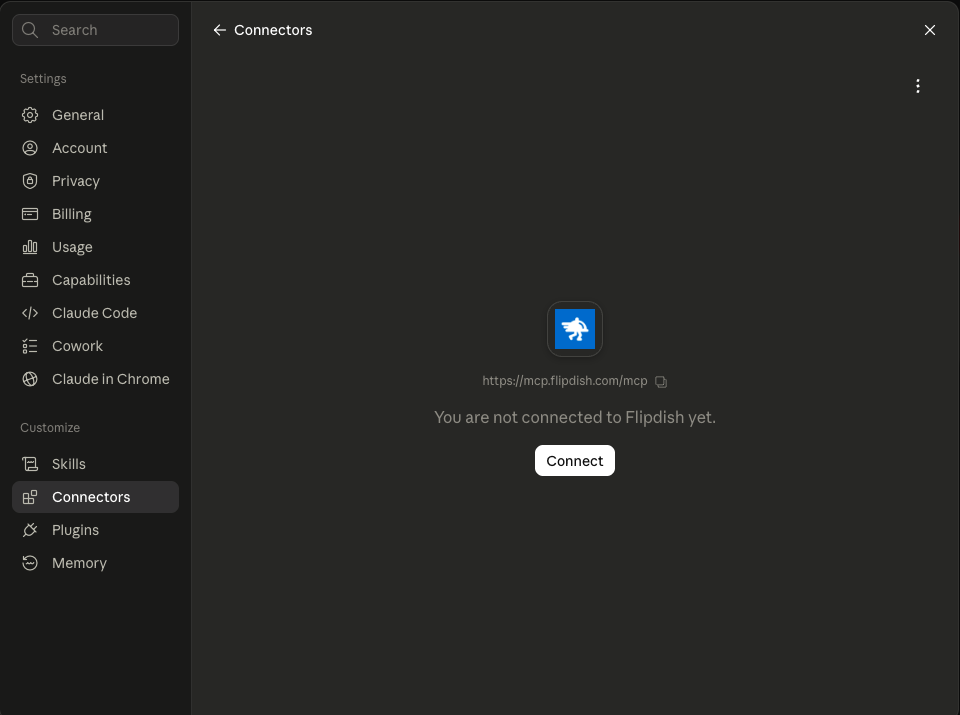
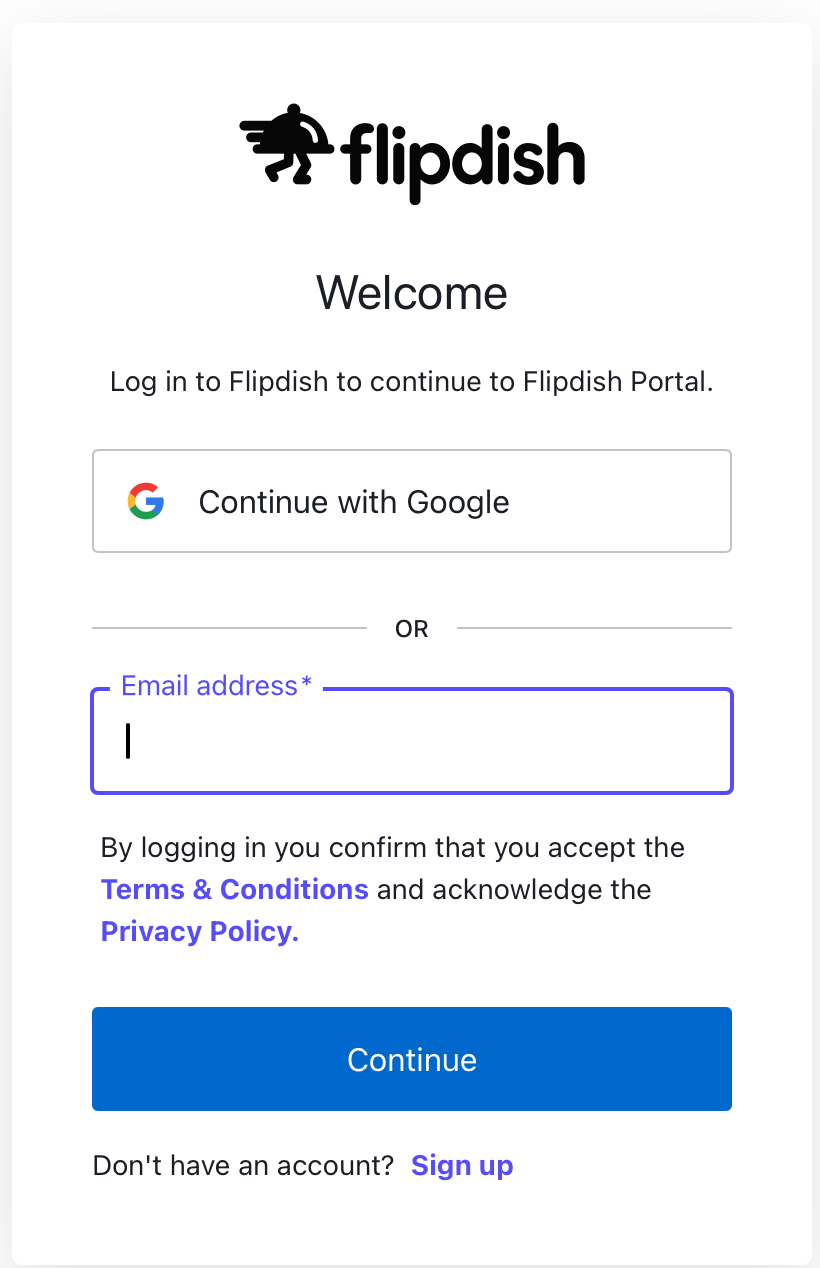
A Flipdish sign-in window opens in your browser. Sign in using your Flipdish Portal or App credentials.
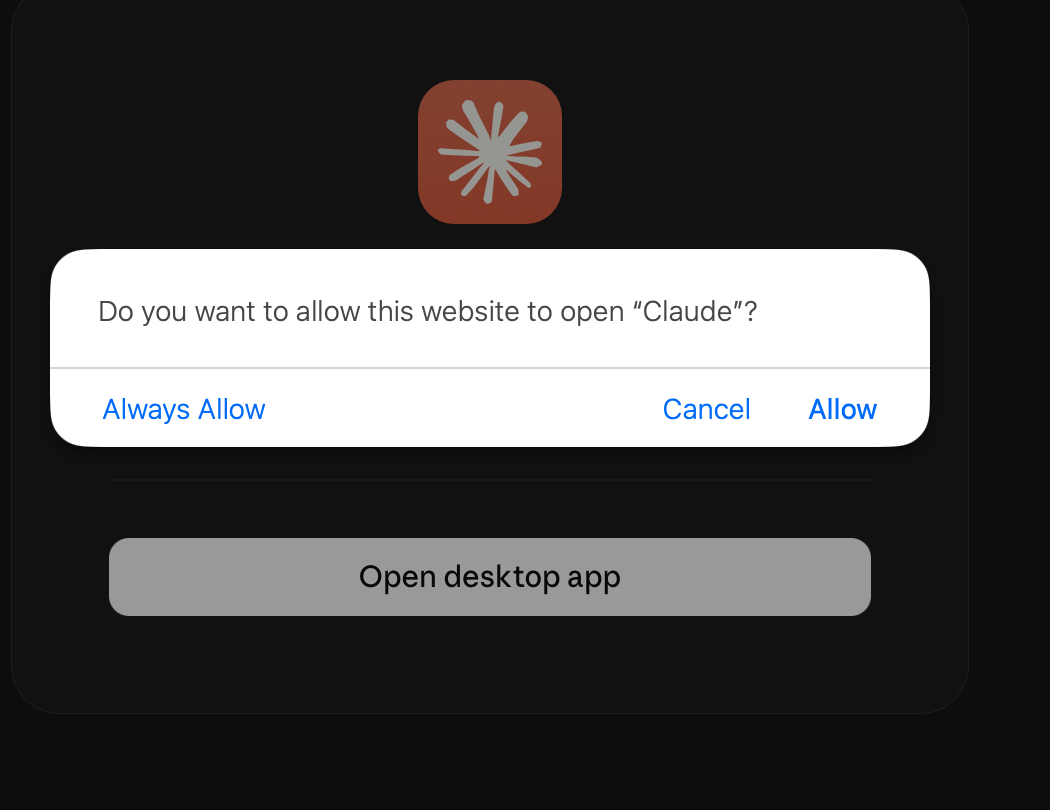
After signing in, return to Claude. If prompted, allow your browser to open the Claude desktop app.
The Flipdish connector should now show as connected.
4. Review tool permissions
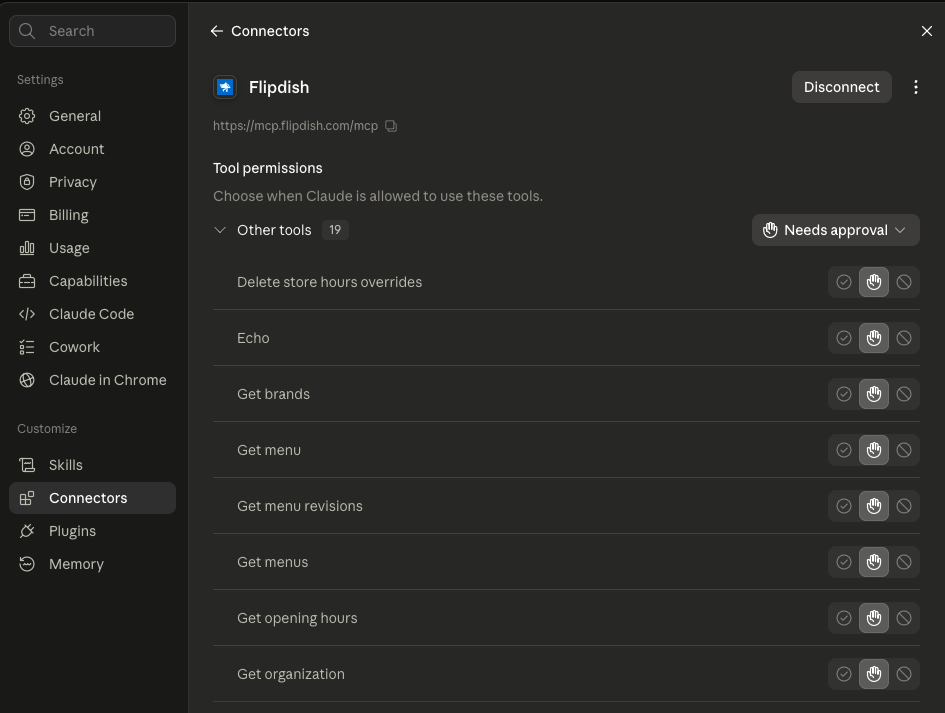
Open the connector’s Tool permissions to control how Claude uses each tool. You can require approval, always allow a tool, or disable it.
Keep approval enabled for tools that change menus or opening hours so you can review actions before they are applied.
5. Test the connection
Start a new chat and ask:
List my Flipdish properties.
If Claude requests permission to use a tool, approve it. You should see the properties your Flipdish account can access.
What you can do
Once connected, your assistant can retrieve information and make changes in Flipdish using your existing account permissions.
| Area | What you can do |
|---|---|
| Opening hours | Check property and sales-channel opening hours, update regular weekly property hours, set channel-specific hours, or configure a channel to use property hours. |
| Temporary opening-hour changes | View existing temporary overrides, apply one-off closures or openings, and remove overrides. |
| Menu browsing | List published and unpublished menus, optionally include archived menus, inspect revisions, and search for items, categories, modifiers, and modifier options. |
| Menu availability | View snoozed items and modifier options, temporarily snooze one or more items, and unsnooze them to make them available again. |
| Menu pricing and publishing | Update prices for menu items and modifier options, publish a specific menu revision, and check publishing status and which revision is live. |
| Sales and reporting | Search and summarise sales using filters such as date, property, status, source, dispatch type, and payment status. Retrieve individual sale details and aggregated sales reports for a property and date range. |
| Orders, refunds, and cancellations | Retrieve individual order details, including items, amounts, and payment or refund status. Issue full or partial refunds, reject orders with a full refund of captured payment, and request sale cancellations. |
| Vouchers and discounts | List and filter vouchers, inspect voucher settings and lifetime usage statistics, create vouchers, update their configuration, and enable or disable them. Settings include discount values, validity dates, eligible stores and channels, redemption limits, minimum order values, and customer eligibility. |
| Terminals and kiosks | List devices registered to a brand and register a terminal or kiosk using the PIN generated on the device. |
Review changes before approving them. Refunds, cancellations, menu publishing, price changes, and other write actions affect your Flipdish account. Specify the exact target and any relevant amounts, dates, or times.
Example prompts
Replace the bracketed text with the relevant brand, property, sales channel, or item name.
Explore your account
- “Which Flipdish organisations can I access?”
- “List the sales channels for [brand].”
Review menus
- “Show me the published menu for [sales channel].”
- “Find [item] in the menu for [sales channel].”
Manage availability
- “What are today’s opening hours for [property]?”
- “Close [property] tomorrow for a bank holiday.”
- “Snooze [menu item] until 6 p.m. today.”
When requesting a change, specify the exact property or item and the intended date and time. Review the action before approving it.
Authentication and permissions
You sign in using your own Flipdish account through your AI client. The client holds your session token, which the MCP server passes to the Flipdish API.
Your existing role-based permissions are enforced. Connecting an AI assistant does not grant additional access: it can only retrieve data or perform actions your Flipdish account already permits.
Need help?
Contact the Flipdish team if you need help connecting or accessing the available tools.
Updated 20 days ago